PLUGIN & INTERFACE
TypeScript
Typed code for the page list, nested folders and plugin actions.
FIGMA PLUGIN / IN-HOUSE PRODUCT
Figma Smart Menu is a Figma plugin for teams that spend their day in files with lots of pages. It gives designers one place to navigate the file and reorganise the work inside it.
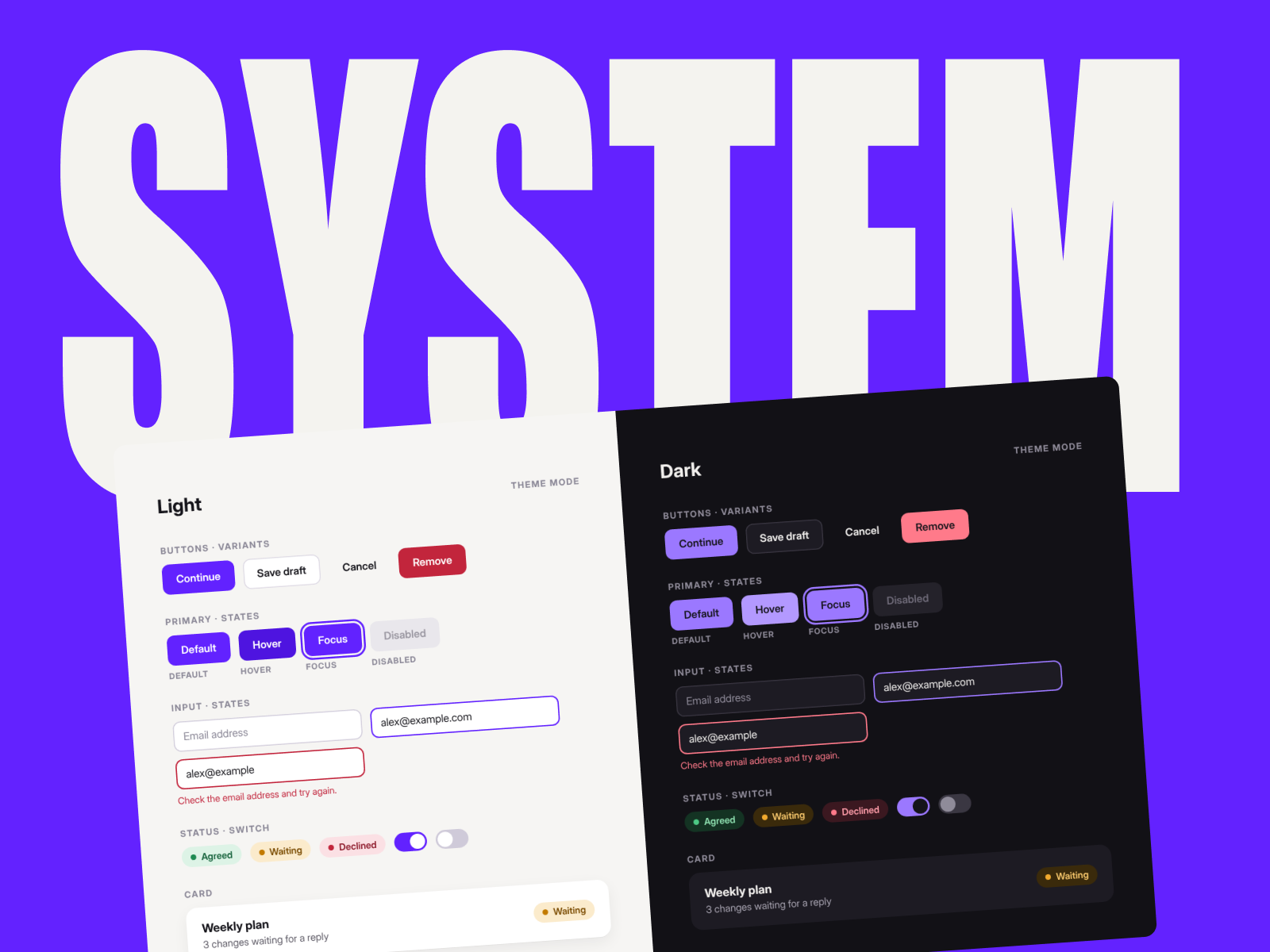
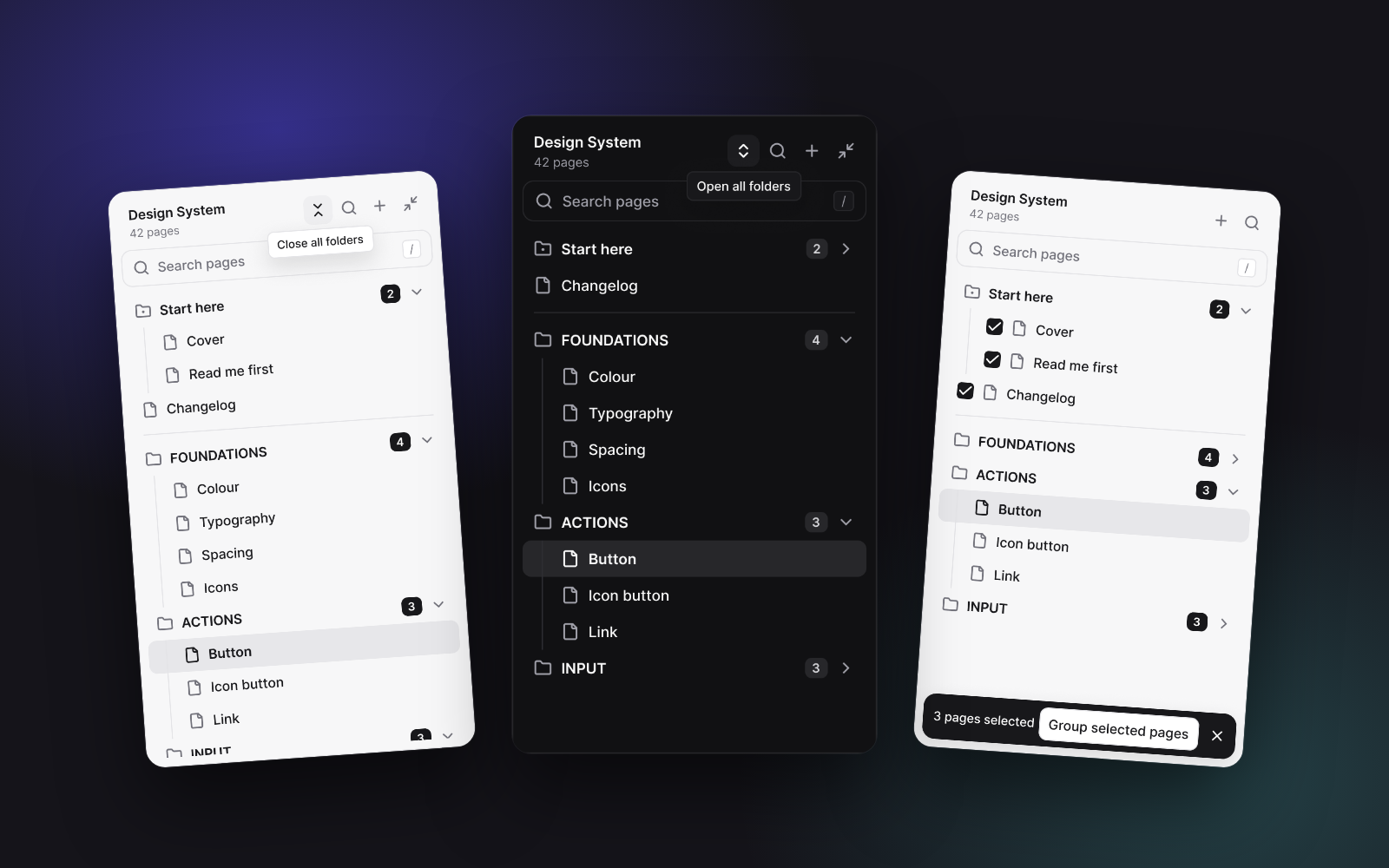
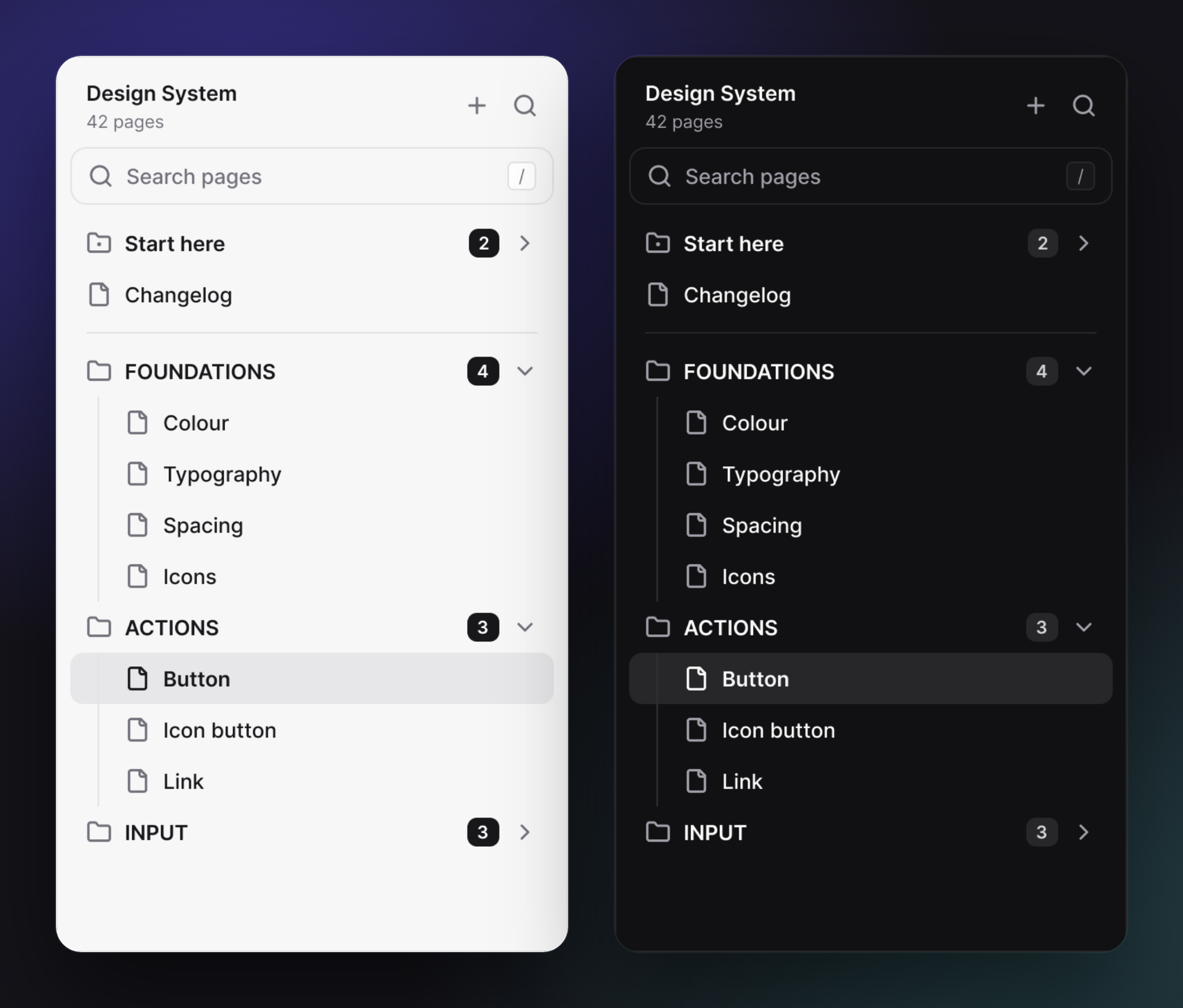
The Figma Smart Menu page navigator in light and dark.
01The brief
In a design-system file, documentation, components and product screens can span dozens of pages. Designers switch between the same few pages all day, then have to dig through the full list when they need to find or reorganise something else.
02What Figma Smart Menu does
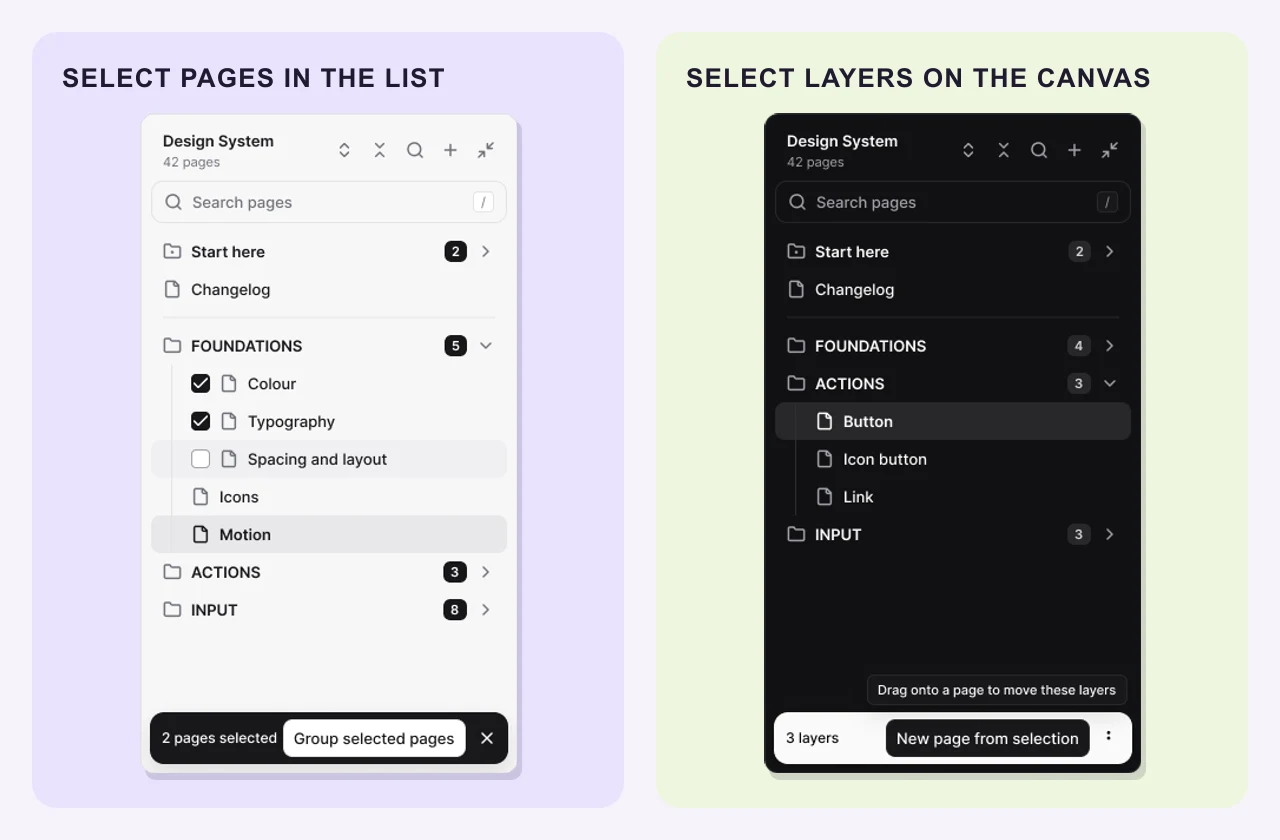
The page list doubles as a workspace. Jump to a page, select the ones you want to reorganise, or move selected layers from the canvas without leaving the plugin.
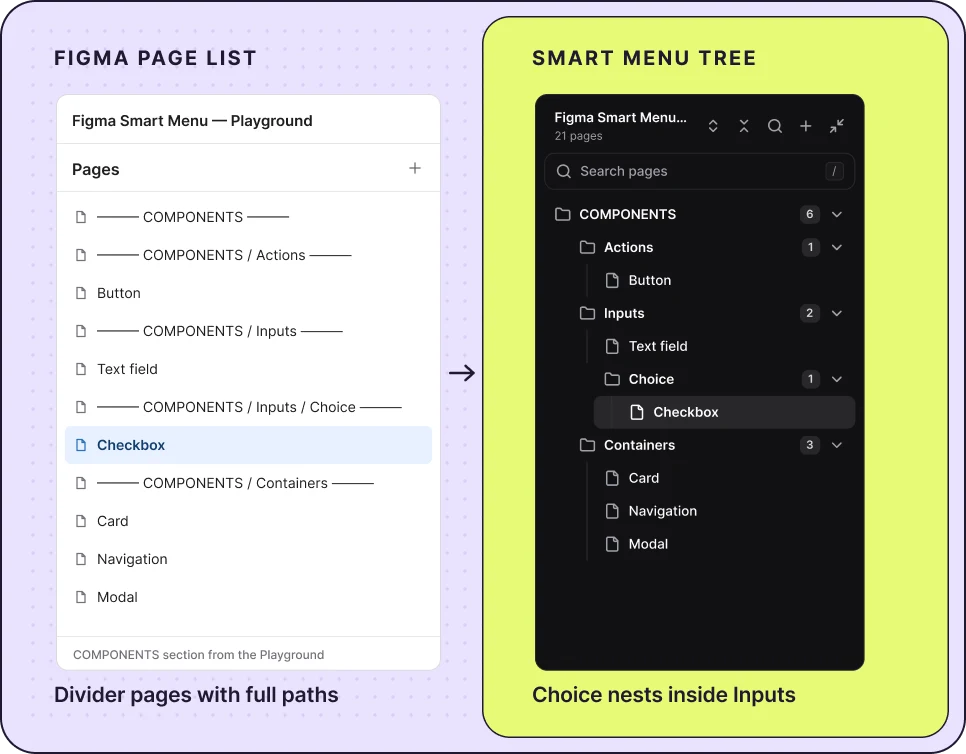
Figma Smart Menu reads the divider names already in the file. A divider such as COMPONENTS / Inputs / Choice becomes a folder path up to three levels deep. Figma keeps its original page list.
The Playground’s flat page list alongside its three-level folder tree in Figma Smart Menu.
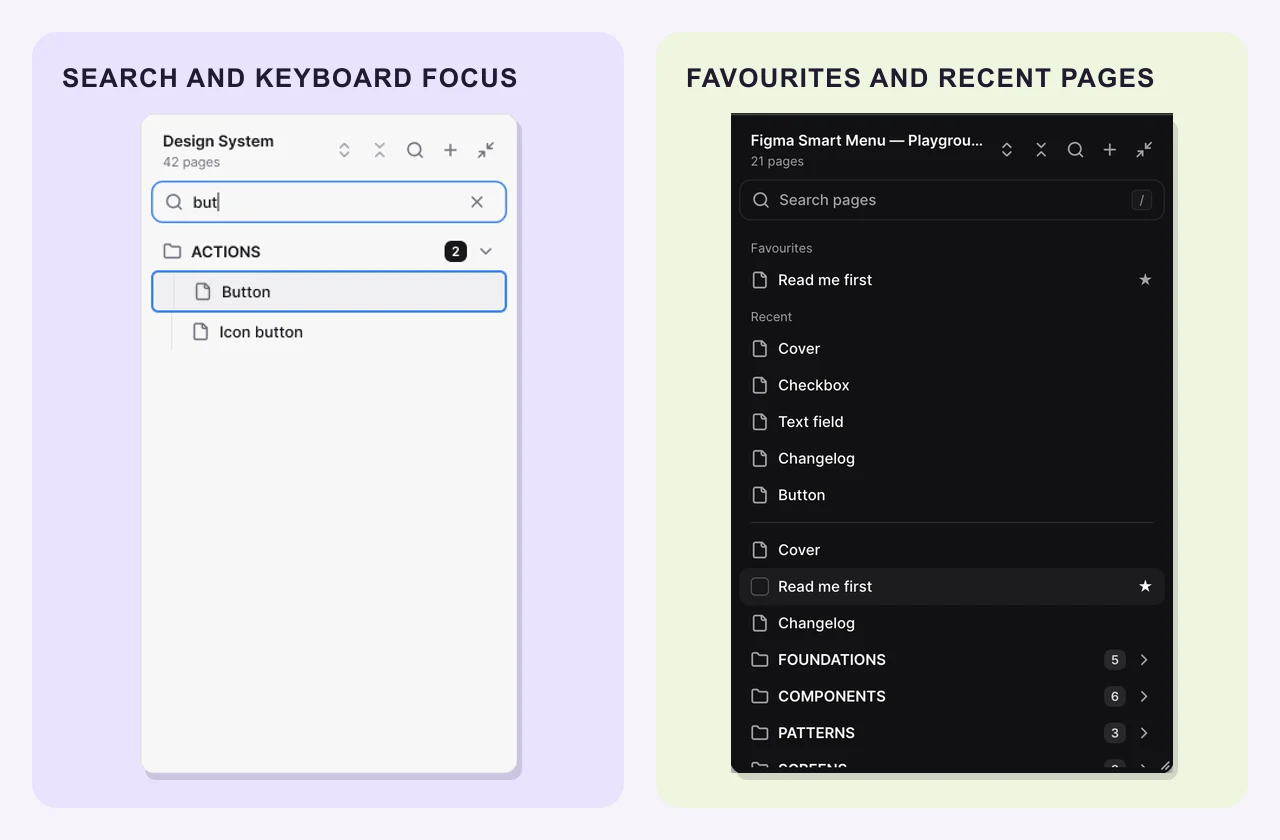
Search by page name and open a result in one click. Star frequently used pages or jump back to the last five you visited. Favourites and recent pages are personal. Use the keyboard to move through the list, open pages and folders, and reach row actions.
Search with the keyboard, star pages you use often, or return to a recent page.
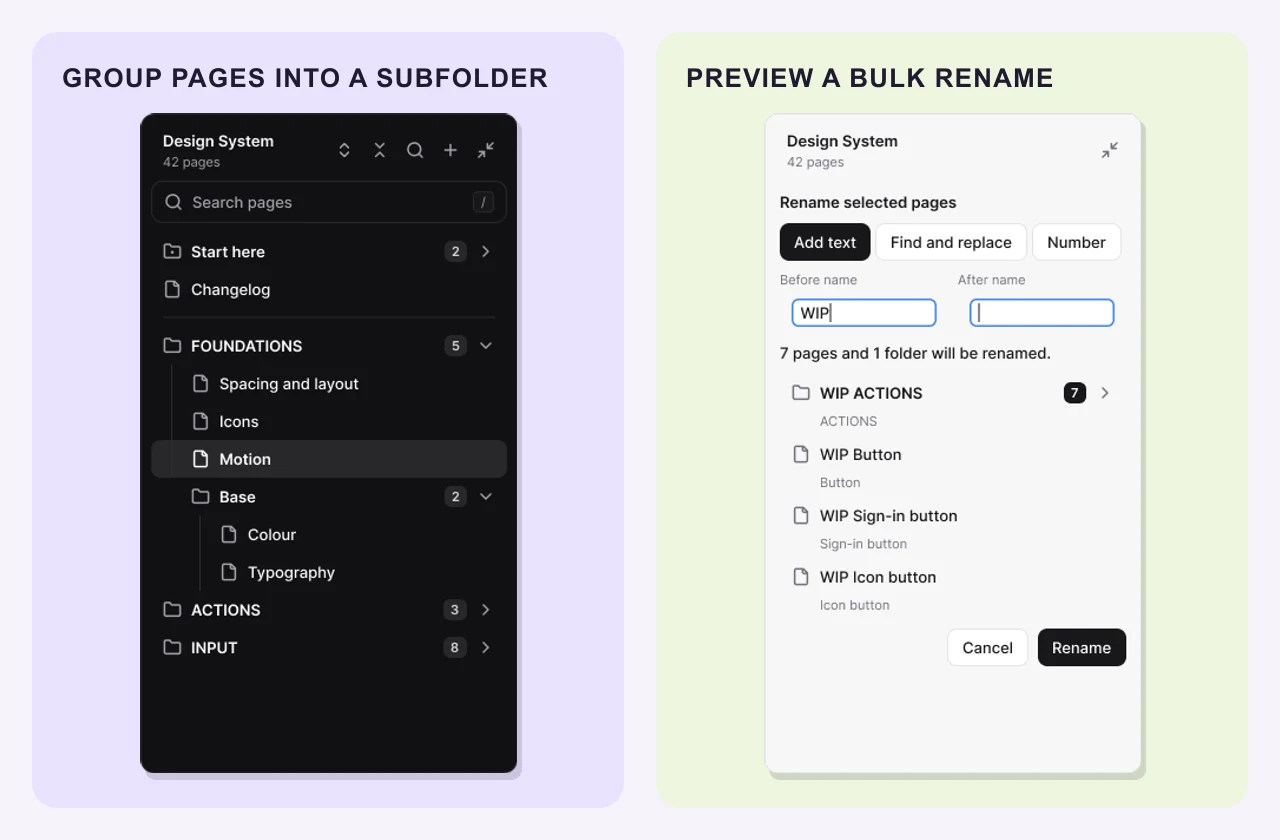
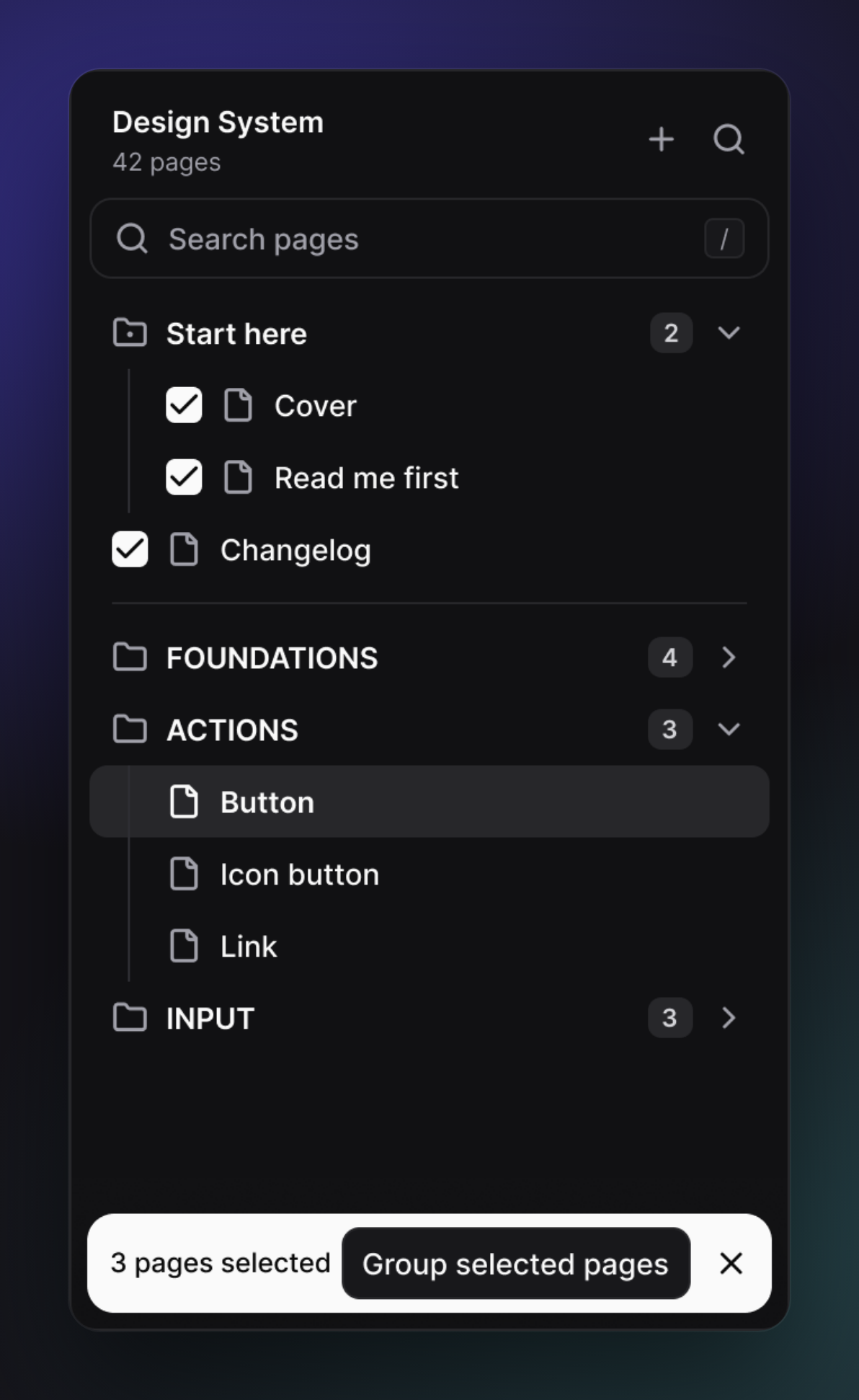
Tick ungrouped pages to make a folder that lives in Figma Smart Menu, or tick pages in the same divider folder to create a subfolder there. Create, move, rename and delete pages from the same panel. When several names need changing, add a prefix or suffix, find and replace text, or number the selection. Review the new names before applying them.
The Base subfolder after grouping pages, and a preview of a bulk rename.
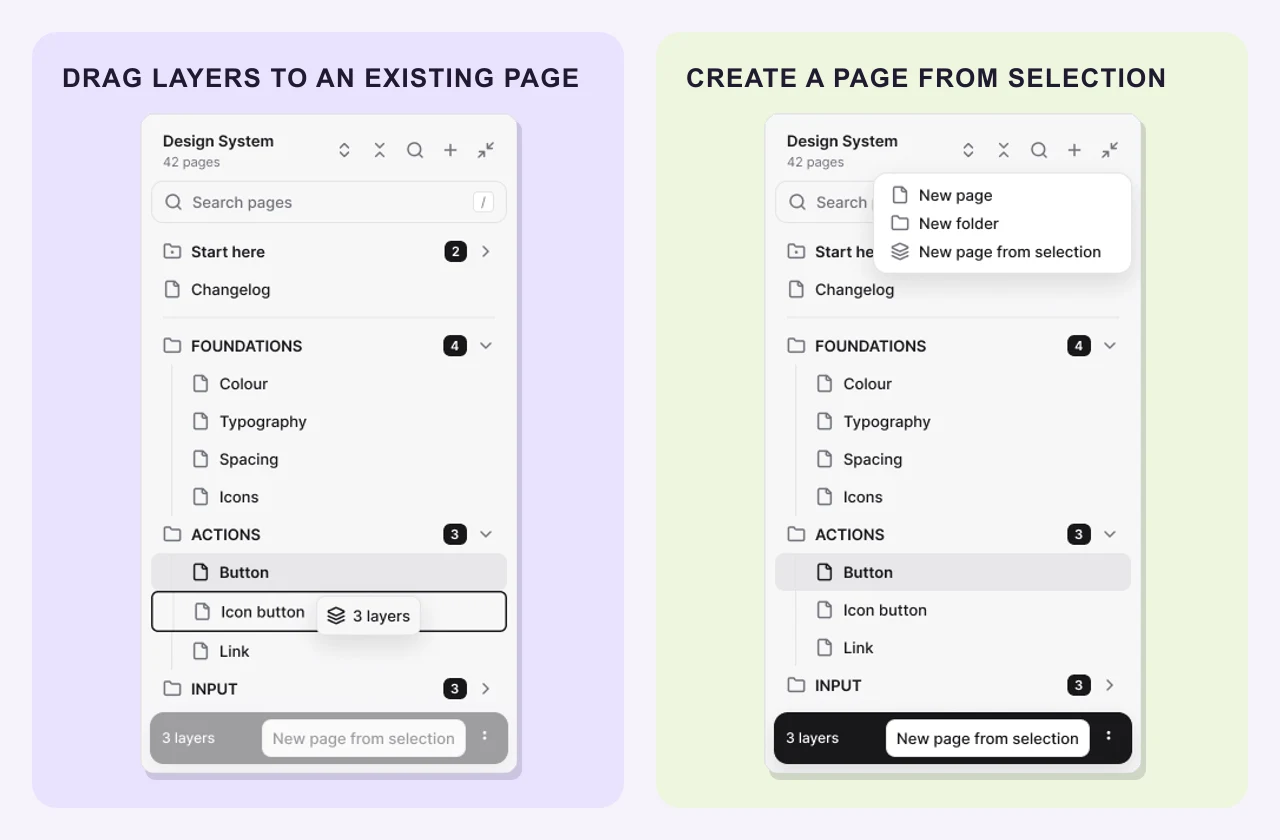
Select frames or layers on the Figma canvas. Send them to an existing page from its menu or drag the selection bar onto that page in Figma Smart Menu. Use New page from selection to move them into a new page in the same folder or subfolder as the current page.
Drag a layer selection onto an existing page, or choose New page from selection from the + menu.
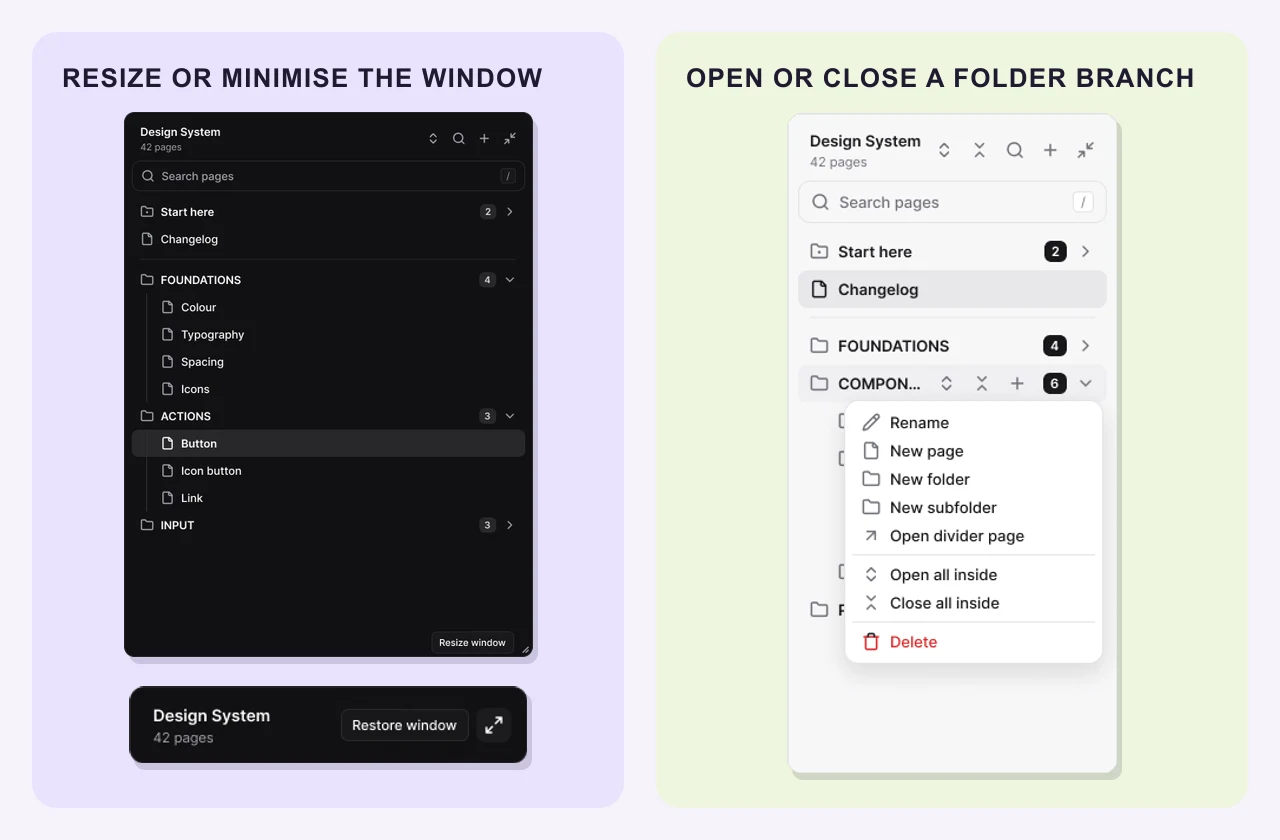
Resize the panel or minimise it to the header. Open or close the whole tree, or do the same for a single folder and everything inside it. Closing folders keeps the current page in view. The panel follows Figma’s light or dark theme.
The wider and minimised panel, plus the controls for opening or closing a folder branch.
03Our contribution
We took Figma Smart Menu from the navigation concept to a working Figma plugin.
Page selections belong to the list, while layer selections start on the canvas. We designed the controls and feedback around what the designer has selected.
We built reusable rows, menus, inputs and feedback states so the panel feels consistent as the file and available actions change.
The plugin tracks pages by their Figma IDs, so renaming a page keeps it connected to the same place in the file. Building the list uses page names and IDs alone, so it can open without loading the canvas contents.
FIGMA PLUGINS
We can design and build a plugin around the work your team repeats in Figma.
Latest work